
Milesight Fixed Bullet 740 — SFTP Setup
These instructions guide you through configuring your camera to securely send images to Guardian using SFTP.
Prerequisites
Before you begin, make sure you have:
- Access to your camera web interface
- Your Camera Endpoint Username and Password from the Guardian dashboard
- Your device name or manual device ID from Guardian
Step 1: Log in to the camera
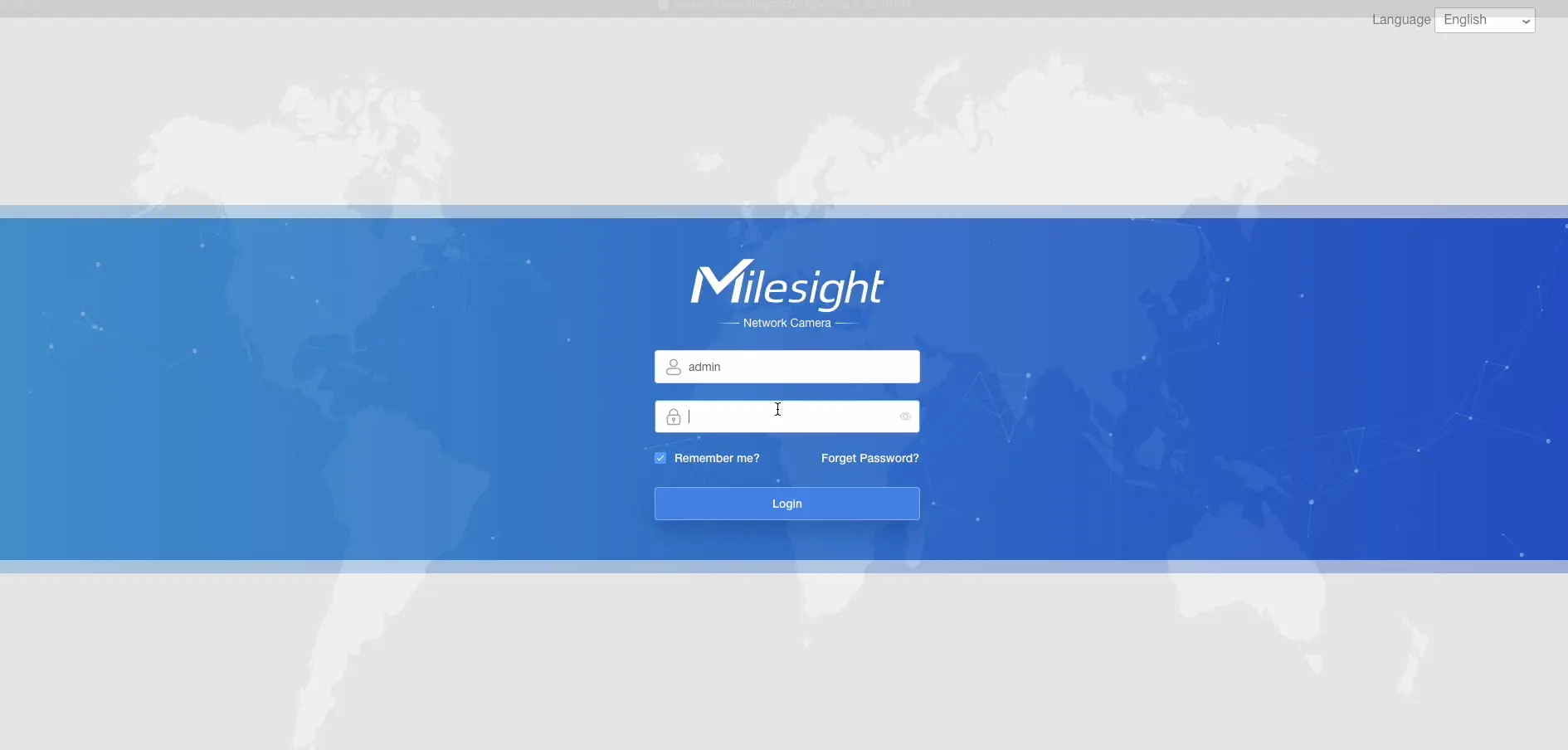
- Log in to your camera through its web interface.
- Click the gear icon to open Settings.
Step 2: Configure the device name
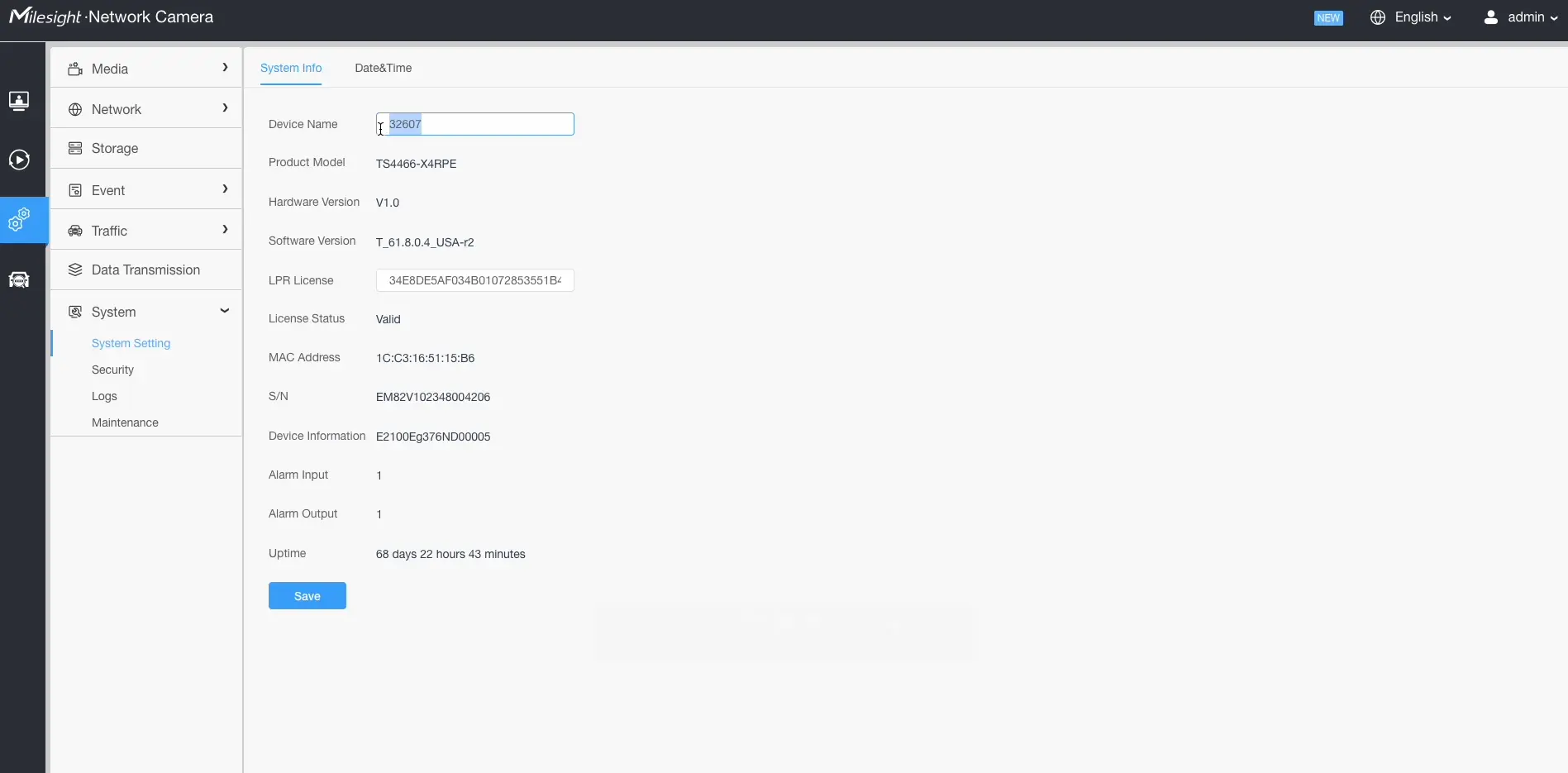
- In the settings menu, select System.
- Click System Settings.
- Open the System Info tab.
- Enter the Device Name.
Device name rules:
- Must not contain spaces
- Must exactly match the device name or manual device ID used in Guardian
- Click Save.
Step 3: Open network settings
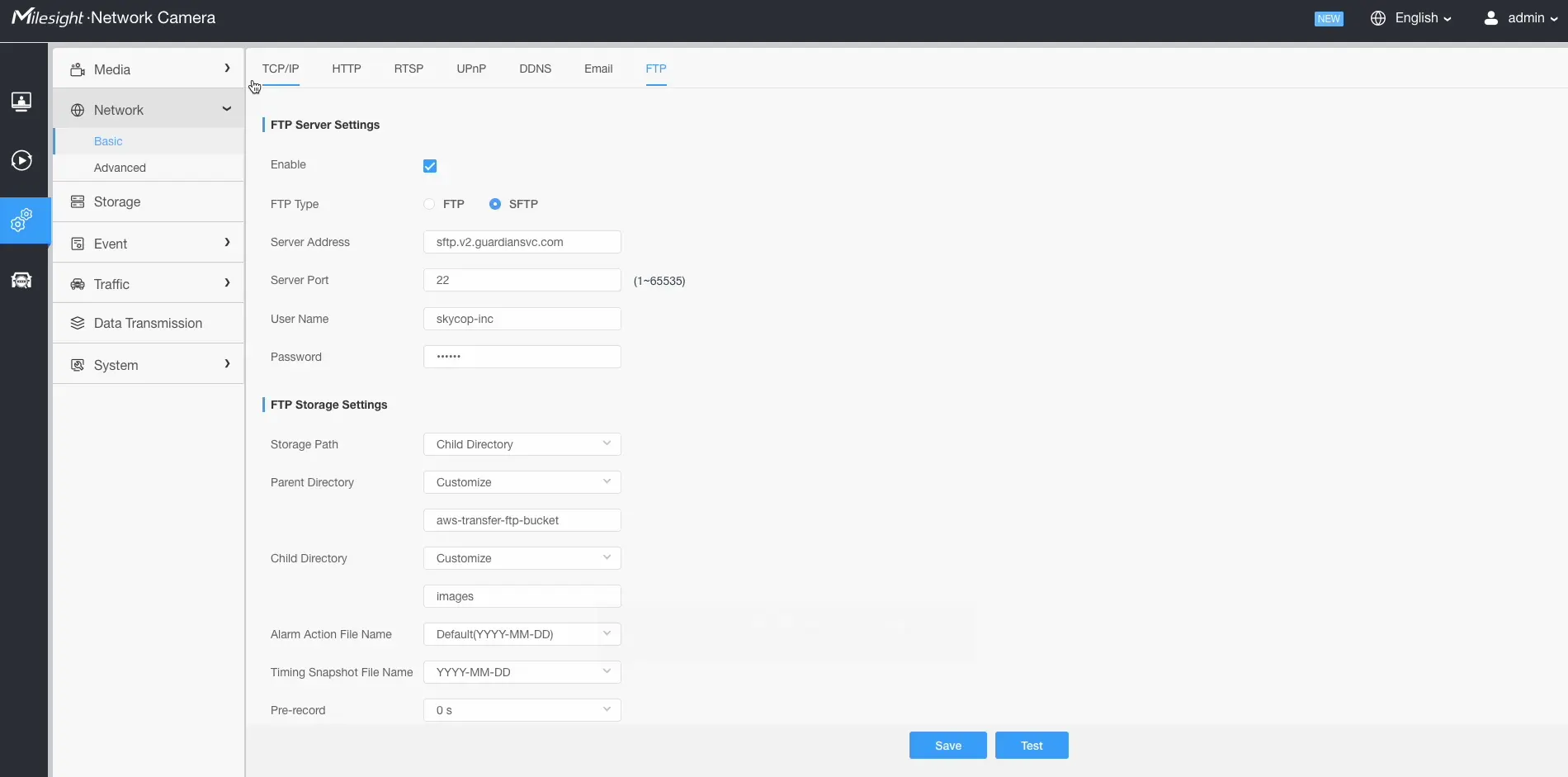
- From the left-hand menu, select Network.
- Click Basic.
- Select the FTP tab.
Step 4: Configure FTP (SFTP)
- Check the Enable box.
- Set FTP Type to SFTP.
- Enter the following server details:
- Server Address:
sftp.v2.guardiansvc.com - Port:
22
- Server Address:
- Enter your Camera Endpoint Username and Password.
These credentials are located in the Settings page of your Guardian dashboard.
Step 5: Configure FTP storage path
Under FTP Storage Settings:
- Set Storage Path to Child Directory.
- Enable Customize for the parent directory and enter:
was-transfer-ftp-bucket
- Enable Customize again and enter:
images
- Leave all remaining settings at default values.
Validation checklist
- Device name in camera matches Guardian device ID exactly
- FTP Type is set to SFTP
- Server address and port are set correctly
- Username/password are accepted
- Test image/event appears in Guardian